The Secrets Behind Social Media

When it comes to finding the right audience for your specific style of content, how your social media is run is absolutely crucial. For example, your videos can be perfect yet, if you aren’t posting as you should be, your videos will go unwatched due to your lack of planning and consideration on behalf of your audience.

In this post, I will be going through the most popular social media platforms for creators and give a combination of my tips and research on how to expand your outreach on each site.

Facebook:

  • The best days to post on Facebook are Sunday, Thursday, Friday, and Saturday.
    • On Saturdays and Sundays, there is 32% higher engagement than other days.
    • On Thursdays and Fridays, there is 18% higher engagement than other days in the week.
  • The best times to post to Facebook are 9 a.m., 1 p.m. and 3 p.m.
    • Posting content at 3 p.m. in the afternoon leads to more clicks; however, posting at 1 p.m. gets more shares.
  • For higher engagement, the suggested length of time for videos on Facebook is roughly one minute and 30 seconds.

Twitter:

  • It is best to post to Twitter on Wednesdays at any of the following times: 12 p.m., 3 p.m., 5 p.m. or 6 p.m.
  • For videos, the maximum length Twitter allows is two minutes and 20 seconds.
  • Interesting Fact: Twitter users are 181% more likely to use Twitter over the course of their commute.

Instagram:

  • The best days to post are on Mondays and Thursdays.
  • The worst day to post is Sunday due to very low engagement.
  • The best times to post to Instagram are:
    • 2 a.m.
    • 8 a.m.
    • 9 a.m.
    • 5 p.m.
  • It is best to avoid posting to Instagram between 3 – 4 p.m.
  • When posting a video, it is best to post at 9 p.m.
    • Uploading a video at this time can lead to up to 34% more interactions.

Understanding Your Target Demographic

As a creator, it is likely you know what your key demographic is made up of. The issue with gaining a following through your content comes mainly from a lack of understanding of your selected demographic. Below I am going to break down the most popular social media sites by age group and gender.

Gender and Social Media Use:

  • Men:
    • 62% use Facebook.
    • 30% use Instagram
    • 25% use LinkedIn
    • 23% use Twitter
  • Women:
    • 74% use Facebook
    • 39% use Instagram
    • 25% use LinkedIn
    • 24% use Twitter

Popularity of Social Media Among Varying Age Groups:

  • Ages 18-29
    • Facebook – 81%
    • Instagram – 64%
    • LinkedIn – 29%
    • Twitter – 40%
  • Ages 30-49
    • Facebook – 78%
    • Instagram – 40%
    • LinkedIn – 33%
    • Twitter – 27%
  • Ages 50-64
    • Facebook – 65%
    • Instagram – 21%
    • LinkedIn – 24%
    • Twitter – 19%
  • Ages 65+
    • Facebook – 41%
    • Instagram – 10%
    • LinkedIn – 9%
    • Twitter – 8%

With these analytics, I hope you can further narrow down your target audience and that you now know the best way to develop your personal social media in order to effectively connect with this audience. For further reading, check out the websites linked below for more information regarding social media analytics and demographic statistics.

p-trans

My Take – Video Transitions

As mentioned in an earlier blog post, using the right transition in your videos can have a large impact on the overall look and feel of your videography. Though many editing software’s provide users with numerous transitions such as a cross dissolve, fade to black, and various page wipes, through including transitions in your videos, your videography abilities will seemingly improve overnight.

I first began experimenting with including transitions in my videos on a family trip to Disney World. Over the course of the trip, I brought along my GoPro Hero 3+ Silver Edition to film different parts of the day to make a short video covering the trip.

After a bit of forward thinking, I decided to start every video with someone placing their hand over my camera’s lens, moving it to reveal the ride or place we were in, then having them place their hand back on the lens once again.

Through placing numerous videos filmed as described above side beside with no physical transition in between, the videos appeared as if they were all filmed at the same time regardless of the varying locations and so on.

Although this way of filming and editing took a bit of planning, I believe it paid off in the end in order to create a video with a unique style not many had seen before. Beyond this, I would heavily suggest that you experiment with various transitions that you may have never seen before.

In the past I have made transitions out of walking, placing my hand over the camera, and more. A few of these select transitions can be seen in the video below from a trip I made to Atlanta, Georgia a few weeks ago.

When it comes to the walking transition I included in my Georgia video edit, throughout the trip I simply took several videos of myself walking on various surfaces and then ended it with a pan up to a large mural. In editing this, I placed all of the videos on my timeline in iMovie, cut each one to fit the music, and made sure my feet matched up in each clip to make it seem as if I was walking across numerous surfaces.

Through the video included above, I hope you can get a general understanding of how I personally use transitions to make my videos a bit more interesting for my audience.

Let me know if there are any other transitions you would like me to try in the comments below!

p-trans

Taking your YouTube Thumbnails to the Next Level

When it comes to gaining views on YouTube, your thumbnail image is one of the very first things your audience is going to take note of when deciding whether or not to watch your video.

For those who aren’t familiar with YouTube thumbnails, they are simply the small picture associated with your video. Essentially, they give YouTube users a preview of what your video contains.

Screen Shot 2018-11-11 at 5.23.15 pm

After completing a short verification on YouTube, you are given the option to upload a custom thumbnail. This allows YouTube creators to select an image from the video to use as a thumbnail or it gives them the option to create an entirely new thumbnail that users will see.

For my YouTube content, I prefer to create my own personal thumbnail to demonstrate my editing abilities. In order to add the unique text for my thumbnails, I use a free font website and the iPhone app Superimpose.

The Process:

  1. To begin, I find a picture either from the video edit or from the trip that I can edit text over. Personally, I think landscape pictures look the best for thumbnails. Once I have chosen the picture I want to use, I then go on to adding the text over the image.
  2. When it comes to adding text over your selected image, I use the following website: https://www.1001freefonts.com/. On this website, you can go through countless fonts to find the one you like the most. Moreover, you can type your desired text on the website to see what the font looks like with your text. Once you have found the font you like, screenshot the text and send it to your other Apple device using either AirDrop or a text message.
  3. Once you have the image of your text on your iPhone, you then need to download the app Superimpose. Through this app, you can overlay the text on your image.
  4. After downloading the app, open the app, go the home option, and click the left-ward most icon at the top of the screen. From here, import the image you would like to place text over as the background.
  5. When your background image has been uploaded, click the top left button again and upload the screenshot of your selected font as the foreground image. Screen Shot 2018-11-11 at 5.24.07 pm
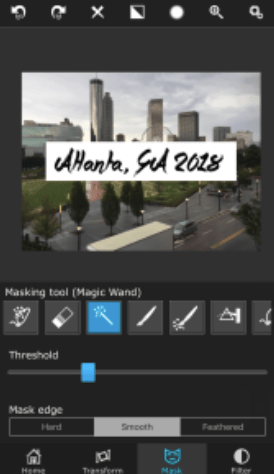
  6. Once both images are uploaded in the app, click the “Mask” option on the bottom bar. Next, click the settings option and choose “Masking tool (Magic Wand)”. After selecting this option simply tap on any white can be seen in the foreground image of the text. Screen Shot 2018-11-11 at 5.24.51 pm
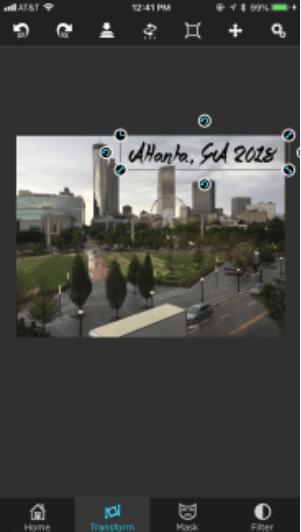
  7. After getting rid of any excess white from the foreground image, move over to the “Transform” tab of the app found at the bottom of the screen. Using this, you can move the foreground image (your text) anywhere you would like in the image. Screen Shot 2018-11-11 at 5.26.23 pm.png
  8. When you are satisfied with the look of your creation, you can save it by moving to the “Home” tab and clicking the top icon of a box with an upward pointing arrow.

If you would like to add more text to your image with a different font, simply repeat all of the steps above with the new image of your text.


Hopefully, this will help you amp up your YouTube thumbnails and give you the views you deserve! Let me know if you have questions regarding this process or the app Superimpose in the comments below!

p-trans

Editing and Music – My Tips and Tricks

For those looking to create videos for an audience, adding music to your videography abilities is crucial. Music has the unique ability to alter the mood of your video entirely. From an uptempo beat to a gloomy ballad, the music included in your video changes how your audience is going to experience your creation.

For my video edits, I always edit to music. Although I have experimented using voice-overs in my edits in the past, the one thing that has remained constant in all of my videos is my use of background music.

With music ranging from trap remixes to downtempo piano, music choice can make or break your videos.

For example, in the video included below, I used music, in addition to a voice over, to control how my audience would view the video. The video, a summarization of a friend and family trip to St. Petersburg, Florida, aimed to highlight the weekend as well as the importance of going with the flow. In order to illustrate this through the video, I was very selective when it came to choosing the song I edited to as well as the voice over.

When it came to the voice over, I knew I wanted something inspirational and fitting. Because of this, I searched various Alan Watts lectures and found one with a clip perfect for my edit. In addition to the voice over, I chose the song Spirits by The Strumbellas (the karaoke version) because of how the song builds up on its own and its simplicity.

In editing this video, I placed the voice-over on top of the song at the softer part of the song and matched the end of Watts’ lecture to when the beat slightly dropped in the song. To ensure the voice-over could be heard in addition to the music, I split the music clip where I wanted the voice-over to end and before the split, I lowered the volume of the music and increased the volume of the voice over. Once the voice-over ended, I increased the volume of the song to create a larger impact on those watching in order to make the transition from voice-over to song seem like the climax of the video.

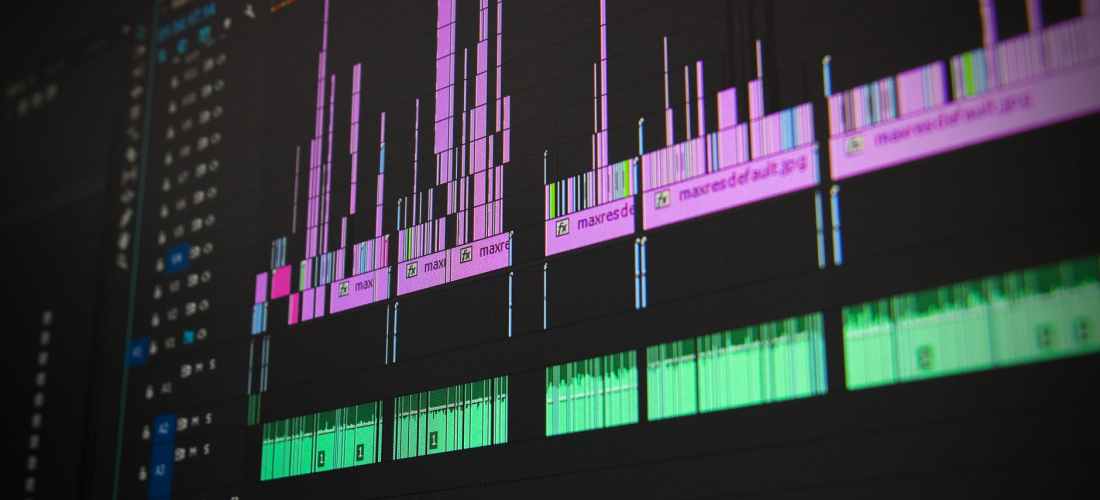
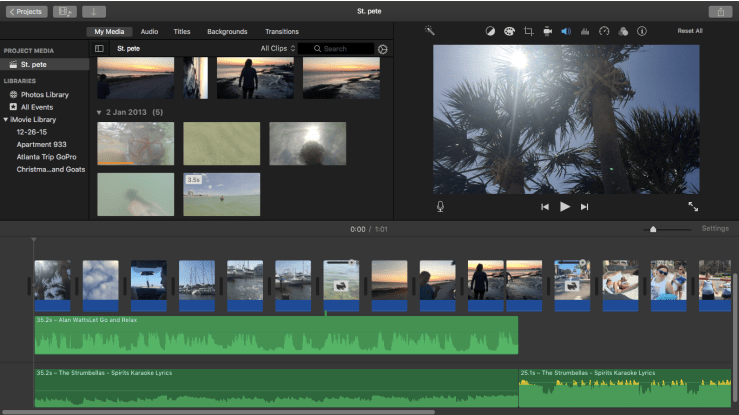
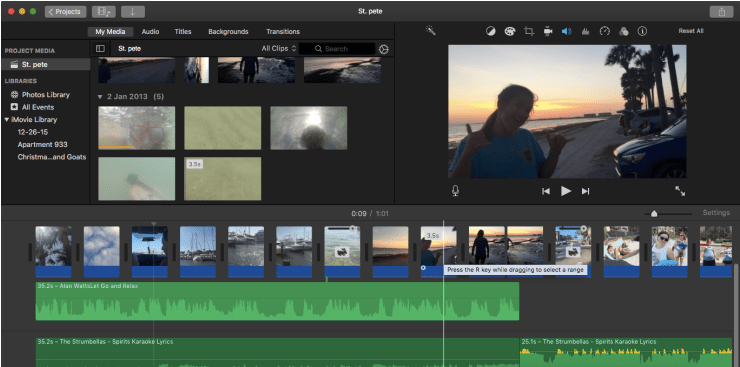
It might seem as adding a voice-over on top of a song would mess up your video editing timeline; however, in the iMovie editing software, it did not complicate my editing process at all. Below is a screenshot of what my timeline in iMovie looked like while editing the video found above.

Screen Shot 2018-11-11 at 5.18.38 pm

If you have any favorite songs you would like to see in a video edit, comment them below!

p-trans

Everyone makes mistakes… but here’s how to avoid them

Personally, one of my favorite things to do when boredom strikes is simply go through my camera roll and reminisce over all of the memories I have made. Through creating videos for the major events in my life, I can easily re-experience all of the fun and joy I had during the original experience. However, I often find myself critiquing my past videos and considering the numerous changes I could make to them that would have improved the overall viewing experience for my followers.

From simple transitions to song choice, we can all look back on past videos with a bit of regret. Although these mistakes have the ability to make you a better videographer, they can easily be avoided. Below are a few of the most common videography mistakes I have noticed as well as the best way to avoid them in your personal videos.

  1. Overuse of the Infamous Cross Dissolve– when I first began to create videos, I failed to realize there were other transitions in existence beyond a cross dissolve. When used sparingly and fittingly, a cross dissolve transition can turn a video change into an experience. I recently used a cross dissolve transition in a recent video to make the shift between two underwater videos seem more natural. Doing so made the two videos seem as if they were one. However, in my former editing days, I was a very large fan of using a cross dissolve as my go-to transition between any and every clip.
  2. Adding an Unnecessary Visual Filter– Depending on the quality, lighting, and overall type of video you are creating, adding a visual filter can either be for the worst or for the best. In my very first video, I decided that putting an overbearing filter on the scenic and simple video would add to the cinematography of the 15-second clip I crafted for Instagram. Looking back, this filter takes away from the realness of the video and makes it truly look unprofessional. Conversely, I have seen numerous travel videos wherein the creator used a soft visual filter on top of their video and it looks truly amazing. All in all, using a filter truly depends on the video clips themselves as well as what you want your video to look like. If going for a more natural video, I would suggest that you leave out any goofy filter for the sake of a more authentic appeal.
  3. Lack of a Story – In order to gain a following using your videos, you must be able to successfully tell a story through your editing abilities. Often times videographers who are just starting out tend to throw a bunch of random clips into the editing timeline, add a song, and leave it be. But, through composing your video with the intention of telling a story, any story, your goal audience will be more interested in your videos and will continually look for your new content.

Let me know if there are any other common mistakes most videographers make I may have missed in the comments below!

p-trans

Your Videography Journey Begins


A journey of a thousand miles begins with one step. – Lao Tzu

When it comes to learning a new craft, it typically all begins with a slight interest. Perhaps you watched an awesome travel vlog or simply a funny comedy skit that used an interesting style of videography to enhance your overall viewing experience. In my case, it all started with a new camera.

I had always been interested in photography and videography; however, I was simply “interested” for a long time. I failed to take the first step to begin learning a new hobby.

In early 2014, prior to going on a family trip to Tennessee, I received a GoPro Hero 3+ Silver Edition. For me, this camera truly symbolizes the beginning of my journey with videography.

With this camera, I began to experiment with videography, regardless of how simple my first videos were. Inspired by the unique travel videos posted all around the internet, I took a short video of myself going down an alpine slide in Tennessee, added a song to the background, and attached a random filter.

Simply using the free video editing software iMovie from Apple, I was able to create my very first “video edit”. Although the video isn’t my best, it serves as the very first step that I took on my journey to learning the art of videography.

Screen Shot 2018-11-11 at 3.44.34 pm

Although it might look slightly complicated, above is a screenshot of what iMovie’s workspace looks like while creating a video.

Everyone’s personal journey with videography starts differently than others. Although this stands true, below are a few of my personal tips that can help anyone master the art of videography.

My Tips for Getting Started:

  • Keep it simple: Although in today’s media-driven world numerous editing softwares that exist, if you’re just starting out, don’t concern yourself with spending a large sum of money on a well-known editing software. Simply stick to the basics. For the vast majority of my videography career, I have used iMovie to create all of my videos. The software is truly user-friendly and is very easy to learn.
  • Record everything: When it comes to creating the perfect video, you never know what will make or break your video. Having your camera ready to go and charged for any adventure you take is one of the most important aspects of being a videographer is being ready for anything. Don’t miss a great video opportunity because you didn’t have your camera on!
  • Tell a story: If you want to truly gain a following through your content, it is crucial that you tell a story through your videography. Whether it be a family trip or a wild adventure with friends, if you can get your audience engaged through your videography, you can become successful.

I hope all of the information above will help you on your personal journey with videography. If you have any additional questions or comments, let me know in the comments below!

p-trans