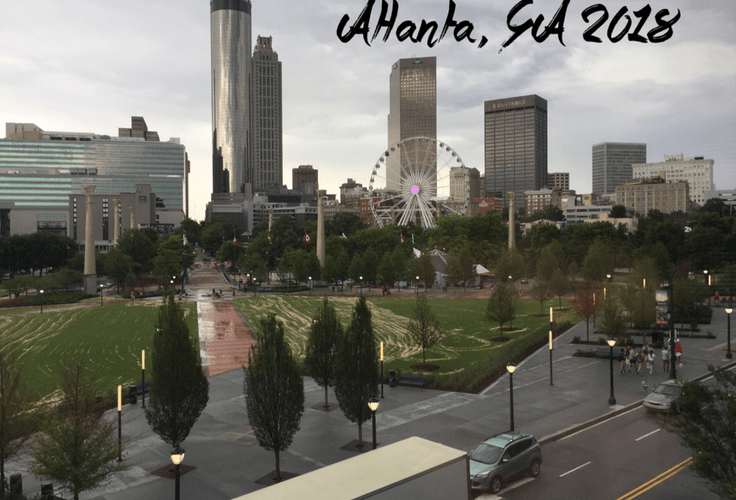
When it comes to gaining views on YouTube, your thumbnail image is one of the very first things your audience is going to take note of when deciding whether or not to watch your video.
For those who aren’t familiar with YouTube thumbnails, they are simply the small picture associated with your video. Essentially, they give YouTube users a preview of what your video contains.

After completing a short verification on YouTube, you are given the option to upload a custom thumbnail. This allows YouTube creators to select an image from the video to use as a thumbnail or it gives them the option to create an entirely new thumbnail that users will see.
For my YouTube content, I prefer to create my own personal thumbnail to demonstrate my editing abilities. In order to add the unique text for my thumbnails, I use a free font website and the iPhone app Superimpose.
The Process:
- To begin, I find a picture either from the video edit or from the trip that I can edit text over. Personally, I think landscape pictures look the best for thumbnails. Once I have chosen the picture I want to use, I then go on to adding the text over the image.
- When it comes to adding text over your selected image, I use the following website: https://www.1001freefonts.com/. On this website, you can go through countless fonts to find the one you like the most. Moreover, you can type your desired text on the website to see what the font looks like with your text. Once you have found the font you like, screenshot the text and send it to your other Apple device using either AirDrop or a text message.
- Once you have the image of your text on your iPhone, you then need to download the app Superimpose. Through this app, you can overlay the text on your image.
- After downloading the app, open the app, go the home option, and click the left-ward most icon at the top of the screen. From here, import the image you would like to place text over as the background.
- When your background image has been uploaded, click the top left button again and upload the screenshot of your selected font as the foreground image.

- Once both images are uploaded in the app, click the “Mask” option on the bottom bar. Next, click the settings option and choose “Masking tool (Magic Wand)”. After selecting this option simply tap on any white can be seen in the foreground image of the text.
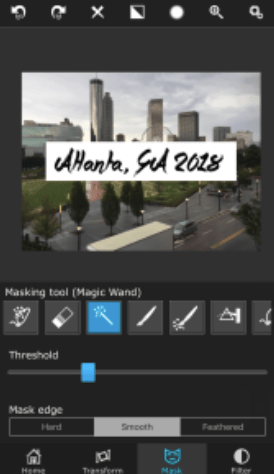
- After getting rid of any excess white from the foreground image, move over to the “Transform” tab of the app found at the bottom of the screen. Using this, you can move the foreground image (your text) anywhere you would like in the image.
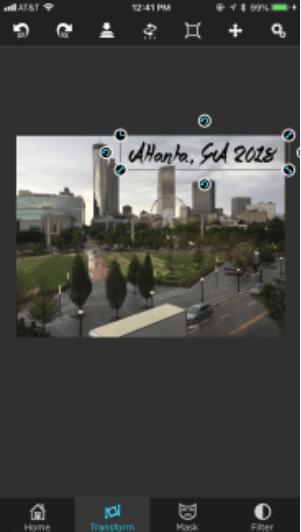
- When you are satisfied with the look of your creation, you can save it by moving to the “Home” tab and clicking the top icon of a box with an upward pointing arrow.
If you would like to add more text to your image with a different font, simply repeat all of the steps above with the new image of your text.
Hopefully, this will help you amp up your YouTube thumbnails and give you the views you deserve! Let me know if you have questions regarding this process or the app Superimpose in the comments below!

 Logan White